
Table of Content
- Quick answer: how do you do an image search on Google?
- What is an image search on Google?
- Why image search matters in 2026
- How to do an image search on a computer
- Method 1: Upload a picture
- Method 2: Drag and drop
- Method 3: Paste an image link
- Method 4: Right-click in Chrome
- Method 5: Start from Google Images results
- How to do an image search on Android
- Option 1: Google Lens in the Google app or Chrome
- Option 2: Long-press an image in Chrome
- Option 3: Circle to Search (supported phones)
- Option 4: Search a screenshot or gallery photo
- How to do an image search on iPhone and iPad
- Option 1: The Google app
- Option 2: Chrome
- Option 3: Safari
- Which method should you use?
- How to get better results
- What people use it for
- Common problems and fixes
- Privacy and safety
- Questions people ask about Google image search
- Is Google reverse image search the same as Google Lens?
- Can I search Google with a picture instead of words?
- How do I find the original source of an image?
- How do I search by image on my phone without an app?
- Is Google image search free?
- Can Google identify a plant, animal or product from a photo?
- Why does Google show "similar images" instead of the exact one?
- Can I search with an image and text together?
- FAQ
- How do I do an image search on Google on my computer?
- How do I do an image search on Google on my phone?
- What is the difference between Google Images and Google Lens?
- Is reverse image search accurate?
- Can I do an image search without uploading my photo?
- Does Google store the images I search with?
- What is Circle to Search?
- Final thoughts
- Related articles
Digital Transform with Us
Please feel free to share your thoughts and we can discuss it over a cup of coffee.
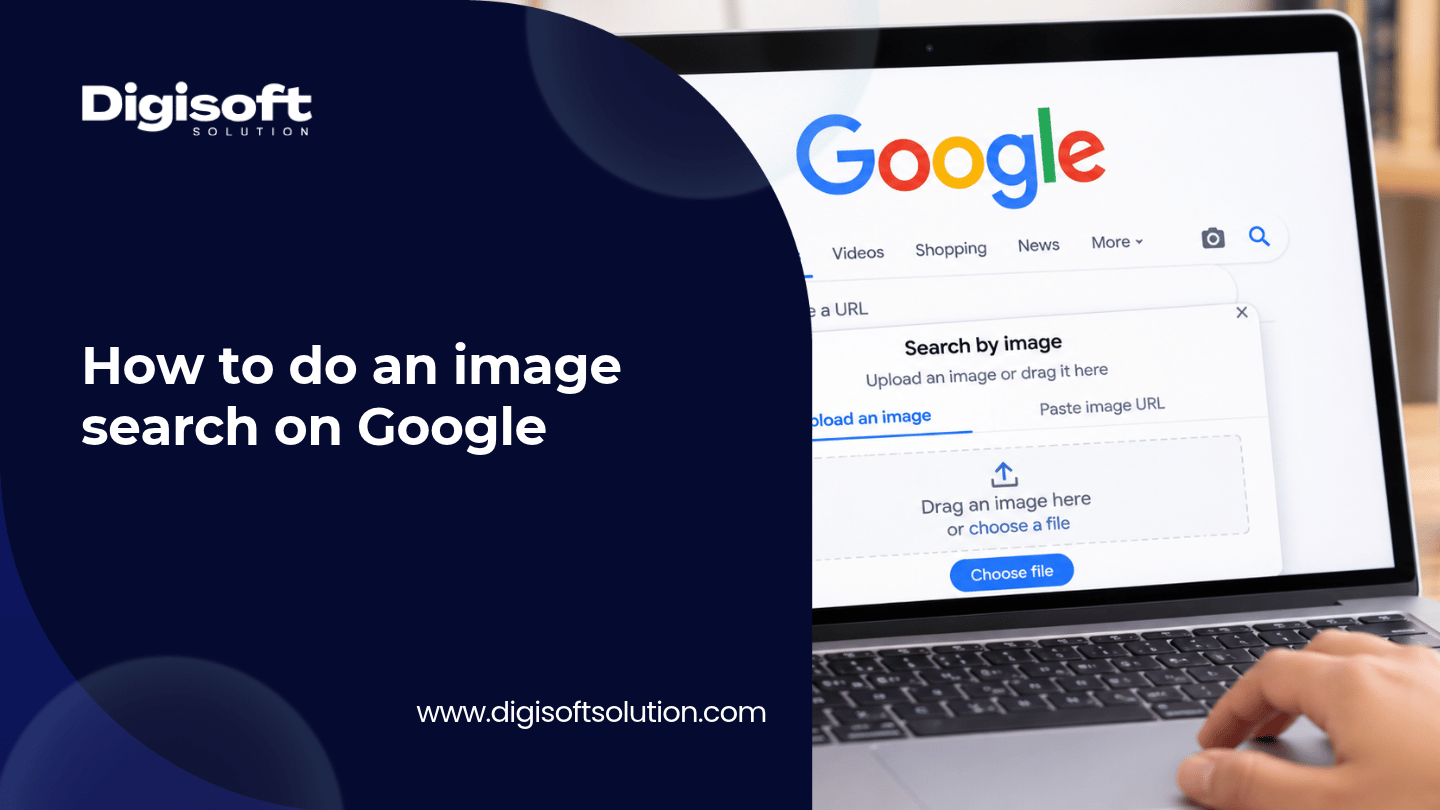
Quick answer: how do you do an image search on Google?
Go to google.com, click the Google Lens (camera) icon in the search bar, then upload a file, drag and drop a picture, or paste an image link. In Chrome, right-click any image and choose Search with Google Lens. On a phone, open the Google app or Chrome and tap the Lens icon.
That's the short version. The rest of this guide shows every method step by step, helps you get better results, and fixes the usual problems.
Key takeaways
- Google's old "Search by image" camera flow now runs through Google Lens. Menu labels still vary, so you may see "Search by image", "Search with Google Lens" or "Search Google for image". They lead to the same place.
- The fastest desktop method is drag and drop. The fastest phone method is the Lens icon in the Google app or Chrome.
- Visual search is huge now. Google said in October 2026 that it handles more than 50 billion visual searches a month.
- Adding a few words to your picture search (multisearch) is the easiest way to get sharper results.
What is an image search on Google?
People use the phrase for two different things, so let's separate them.
- Searching for images with words. You type "red running shoes" into Google Images and browse the pictures. That's classic Google Images.
- Searching with an image. You give Google a picture and it finds where that picture appears, similar pictures, products, places, plants, text and more. This is called reverse image search or visual search, and it's what most people mean today.
Google Lens is the engine behind the second one. According to HP's 2026 explainer, Lens goes beyond matching photos. It can identify objects, animals, plants and landmarks, and translate text inside a picture in over 100 languages.
Why image search matters in 2026
Here is the fresh data, and a warning about comparing it.
- On the Q3 2026 earnings call (October 28, 2026), Sundar Pichai said Google now handles more than 50 billion visual searches a month, and that about one in five AI Mode searches uses voice, images or documents.
- Earlier in 2026, a June Think with Google analysis put Google Lens at more than 25 billion visual searches a month, with roughly one in five showing commercial intent.
- Careful here. The 25 billion and 50 billion figures may count different things (Lens only versus a wider "visual search" definition), so don't treat the jump as pure growth.
How to do an image search on a computer
These steps work on Windows, Mac and Chromebook. Google's own Search Help page describes the upload, drag and drop, URL and right-click flows.
Method 1: Upload a picture
- Go to google.com in your browser.
- Click the camera icon (Google Lens or "Search by image") in the search bar.
- Click Upload a file.
- Pick the image and click Open.
- Google shows matches, similar images, shopping results and pages that use the picture.
Method 2: Drag and drop
- Open google.com and click the camera icon.
- Find the image file on your computer.
- Drag it into the box that says to drop an image.
- Release. Results load right away.
This is the fastest way if the file is already on your desktop.
Method 3: Paste an image link
- Right-click an image on a website and choose Copy image address.
- Go to google.com, click the camera icon.
- Paste the link and search.
Use this when you don't want to download the file first.
Method 4: Right-click in Chrome
- Open the page with the image in Chrome.
- Right-click the image.
- Choose Search with Google Lens (older versions say "Search Google for image").
- Results open in a side panel, so you stay on the page.
Method 5: Start from Google Images results
- Search for something on google.com and click the Images tab.
- Click any picture to enlarge it.
- Click the Lens icon on the enlarged image to find similar items.
Tip: add words to your search
After the results load, use the box that says "Add to your search" and type extra words. Upload a photo of a chair, then add "buy online" or "oak" and Google blends the picture and the words. HP's guide gives this exact chair example, and it's one of the most underused tricks.
Heads up on the labels
Google changes button names a lot. If you can't find "Search by image", look for a small multicolor camera icon in the search bar. That's Lens.
Quick note on old tricks
Some older guides tell iPhone and Android users to tap "Request desktop site" first. It can still work in some browsers, but it isn't needed now that Lens is built into the Google app and Chrome.
How to do an image search on Android
Option 1: Google Lens in the Google app or Chrome
- Open the Google app or Chrome.
- Tap the Lens icon in the search bar.
- Take a new photo, or choose one from your gallery.
- Tap an area of the picture to focus the search, or just scroll the results.
Option 2: Long-press an image in Chrome
- Open the web page in Chrome.
- Press and hold the image.
- Tap Search image with Google Lens.
Option 3: Circle to Search (supported phones)
On supported Android phones you can press and hold the home button or navigation bar, then circle, tap or highlight anything on the screen. Google lists Circle to Search as a major way people now search with images.
Option 4: Search a screenshot or gallery photo
- Open the picture in Google Photos or your gallery.
- Tap the Lens icon.
- Crop the area you care about if the picture is busy.
How to do an image search on iPhone and iPad
There is no separate Lens app on Apple devices, but you have three easy routes.
Option 1: The Google app
- Install the Google app from the App Store.
- Tap the Lens icon in the search bar.
- Take a photo or upload one from your library.
Option 2: Chrome
- Open the page in Chrome.
- Press and hold the image.
- Tap Search image with Google Lens.
Option 3: Safari
- Press and hold the image in Safari and tap Share.
- Tap Search with Google, then choose Search with Google Lens.
- The Google app opens with your results. You need the Google app installed for this to work.
Which method should you use?
|
Situation |
Best method |
Why |
|
Photo already saved on your laptop |
Drag and drop on google.com |
Fastest, no extra clicks |
|
Image sits on a web page |
Right-click in Chrome, Search with Google Lens |
Keeps you on the page |
|
You only have the image link |
Paste the URL |
No download needed |
|
Something in front of you (plant, product, sign) |
Lens in the Google app |
Live camera, instant results |
|
Something on your phone screen |
Circle to Search or a screenshot |
No app switching |
|
Checking if a photo is fake or stolen |
Lens first, then TinEye |
Two sources give a better picture |
How to get better results
- Use a clear, high-resolution image. Blurry or tiny pictures give vague matches.
- Crop to the main subject. If you want the orchid, not the whole garden, crop to the orchid.
- Add a few words. Use the "Add to your search" box to narrow things down.
- Try a second tool. For copyright checks, TinEye is still a precise option, and Bing Visual Search can surface different matches.
- Search more than once. Different crops of the same image can give very different results.
- Check the source. A match doesn't prove a photo is real or original. Look at dates, site reputation and context.
What people use it for
- Finding where a photo first appeared, or verifying it before sharing
- Spotting a fake offer, fake profile photo or doctored screenshot
- Identifying plants, animals, landmarks and products
- Finding where to buy something you saw in a picture
- Translating text on signs, menus and packaging
- Checking if someone is using your photos without credit
Common problems and fixes
|
Problem |
Likely cause |
Fix |
|
No "Search by image" button |
Google renamed it |
Look for the camera or Lens icon in the search bar |
|
Right-click option missing |
Not using Chrome, or old version |
Update Chrome, or use upload or drag and drop |
|
Results look unrelated |
Busy or low quality image |
Crop to the main subject, use a sharper file |
|
Lens won't open on iPhone |
Google app not installed |
Install the Google app, then try again |
|
Link search fails |
Image URL is private or blocked |
Download the image and upload it instead |
|
Only similar images, no exact source |
Image is new, edited or rarely published |
Try different crops, then TinEye |
|
Can't search a screenshot |
Wrong app route |
Open it in Google Photos and tap the Lens icon |
Privacy and safety
Browsers don't save the URLs you search in your history, but Google's help page notes that Google may store URLs you search to improve its products. So don't upload IDs, medical records or private documents. Be extra careful with photos of other people. Results about strangers can be wrong, and tracking someone down from a photo raises real privacy problems.
Questions people ask about Google image search
These are the kinds of questions people type into search and AI tools. Short, direct answers help readers and also help answer engines pull a clean response.
Is Google reverse image search the same as Google Lens?
Mostly yes. The reverse image search flow now runs through Lens, which does more than match photos. It also identifies objects, reads and translates text, and finds products.
Can I search Google with a picture instead of words?
Yes. Use the camera or Lens icon on google.com, the Google app or Chrome, then upload, drag in or paste a picture.
How do I find the original source of an image?
Run the image through Lens, then scroll to the pages where it appears. Check which result has the oldest date or the most original context. For stolen images, run the same picture through TinEye too.
How do I search by image on my phone without an app?
On Android, long-press an image in Chrome and tap Search image with Google Lens. On iPhone, Chrome offers the same press-and-hold option.
Is Google image search free?
Yes. Google Lens and reverse image search are free, and Google doesn't cap how many searches you can run.
Can Google identify a plant, animal or product from a photo?
Often, yes. Lens is good with plants, animals, landmarks and products. Accuracy drops with poor lighting, odd angles or rare items, so confirm with a second source.
Why does Google show "similar images" instead of the exact one?
The exact image may not be indexed, or it may have been cropped, filtered or compressed. Try other crops of the same picture.
Can I search with an image and text together?
Yes. After uploading, type extra words in the "Add to your search" box to refine the results.
FAQ
How do I do an image search on Google on my computer?
Go to google.com, click the Lens (camera) icon, then upload a file, drag and drop an image, or paste a link. In Chrome, you can also right-click an image and choose Search with Google Lens.
How do I do an image search on Google on my phone?
Open the Google app or Chrome, tap the Lens icon, and take or upload a photo. In Chrome, you can also press and hold any image and tap Search image with Google Lens.
What is the difference between Google Images and Google Lens?
Google Images is for finding pictures with words. Google Lens searches with a picture and can also identify objects, translate text and find products.
Is reverse image search accurate?
It's good at finding exact and near-exact matches, but it can miss new, edited or rarely published images. Always check the source and date, and try a second tool for important checks.
Can I do an image search without uploading my photo?
Yes. If the image is online, paste its link, or right-click it in Chrome. You don't need to download it.
Does Google store the images I search with?
Google's help page says it may store the URLs you search to improve its products. Avoid uploading private or sensitive images.
What is Circle to Search?
It's an Android feature on supported phones that lets you circle, tap or highlight something on your screen and search it right away. Google counts these searches in its new Search Console image-search data.
Final thoughts
Doing an image search on Google is easy once you know where the Lens icon hides. Upload, drag, paste, right-click or tap, and you're done in seconds. Crop to the main subject, add a few words, and double check the source with a second tool when it matters. That's really all there is to it, and with more than 50 billion visual searches a month, its a skill worth having.
Related articles
- Search Engine Basics: How Google Crawls, Indexes and Ranks Pages: how search engines find and understand content, including images.
- Digisoft Solution blog: more guides on SEO, AI and web development.
Digital Transform with Us
Please feel free to share your thoughts and we can discuss it over a cup of coffee.